

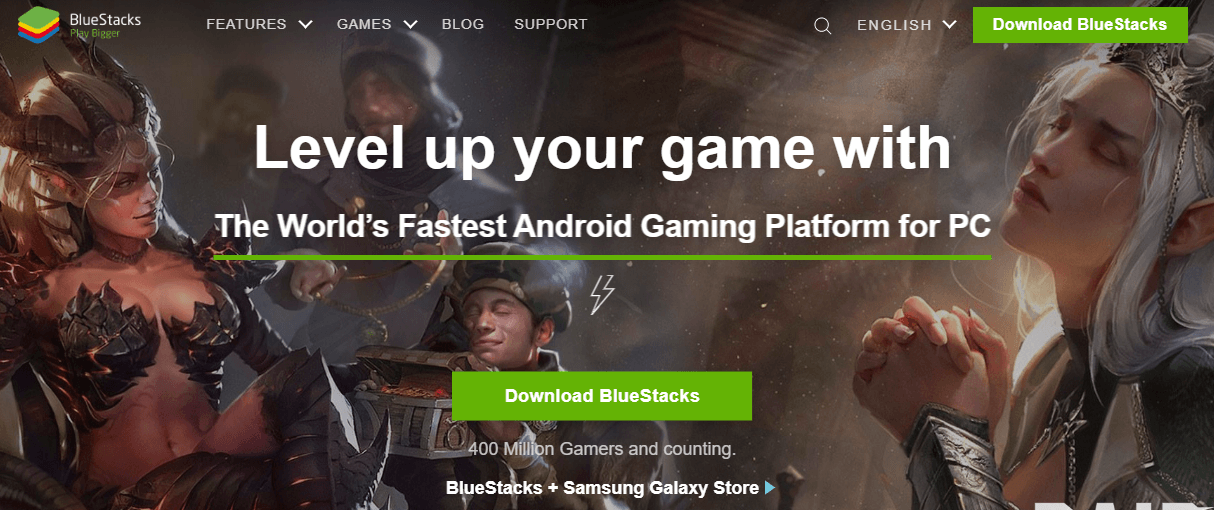
BlueStacks is an Android app player that can run supported Android apps and games on a computer. The original version of this article referred to BlueStacks 4 and Windows 7/8/10, so the instructions below focus on the current installation workflow rather than an old version number.
Important: download BlueStacks only from the official BlueStacks website. Do not use third-party download sites or modified installers.
How to Download BlueStacks
- Open the official BlueStacks website.
- Choose the current download option offered for your operating system.
- Save the installer to your computer.
- Open the downloaded installer and follow the on-screen setup instructions.
How to Install BlueStacks
The installer handles the main setup process. Depending on the current BlueStacks release and your computer configuration, you may be asked to approve Windows security prompts, choose an installation location or enable virtualization-related settings.
After installation finishes, launch BlueStacks and complete its first-run setup. Sign in to Google Play only if the Android app or game you want to use requires it.
If BlueStacks Does Not Install or Run
- Check system compatibility: current releases can have different requirements from older versions, so use the requirements published by BlueStacks for the version you are installing.
- Update Windows or macOS: an outdated operating system can cause compatibility problems.
- Check virtualization: Android emulators can benefit from hardware virtualization. Follow BlueStacks’ current instructions rather than changing BIOS settings blindly.
- Close conflicting software: security tools, other virtualization software or background applications can sometimes interfere with an emulator.
- Use the official support documentation: error messages can be version-specific, so an old tutorial may point you toward the wrong fix.
Is BlueStacks Safe?
Download the installer from the official BlueStacks site and keep your operating system and security software updated. As with any desktop software, review permissions and avoid modified or pirated installers.
What You Should Know About Android Emulators
An emulator does not turn an Android app into a native Windows or Mac application. Compatibility can vary by app, game, operating system, graphics hardware and emulator version. Some apps may also restrict emulator use or require device-specific hardware.
For financial, authentication or other security-sensitive apps, check the app provider’s supported-device policy before relying on an emulator.
FAQ
Can I install BlueStacks on Windows?
BlueStacks provides Windows versions. Check the official system requirements for the current release before installing.
Can I install BlueStacks on Mac?
BlueStacks has provided Mac support for compatible releases, but supported macOS versions and hardware requirements can change. Check the current official requirements rather than relying on an old Windows-era guide.
Is BlueStacks free?
BlueStacks provides a free way to use its Android app-player software, while optional services and features can vary by product and release. Check the official site for current terms.
Related reading: Ways to Play Android Games on a PC.
